
An e-commerce product video needs to do more than cycle through product photos. In a short amount of time, viewers should understand what the product is, what makes it useful, when they would use it, and why they should consider buying it now.
This guide uses a fictional box of caramel sea salt sandwich cookies. We will define the selling points, arrange seven images into a clear sequence, write narration and a kinetic card for every scene, and use OnceClip to create a vertical product video that is ready to preview and download.
The product, brand, and price in this guide are fictional examples. They do not represent a real listing or promotion.
1. Define the product and the video's goal
Lock down the product facts before writing the script. This keeps the images, narration, cards, and final call to action consistent.
- Product: caramel sea salt sandwich cookies
- Pack size: 12 cookies, individually wrapped
- Main features: crisp cookies, caramel center, and a light sea salt finish
- Use cases: an office coffee break, pairing with black coffee, and sharing with coworkers
- Sample price: US$19.99
- Video goal: help a first-time viewer understand the product and feel ready to choose it in about one minute
Keep the video focused on one buying idea. This example centers on convenience, an enjoyable afternoon break, and easy sharing.
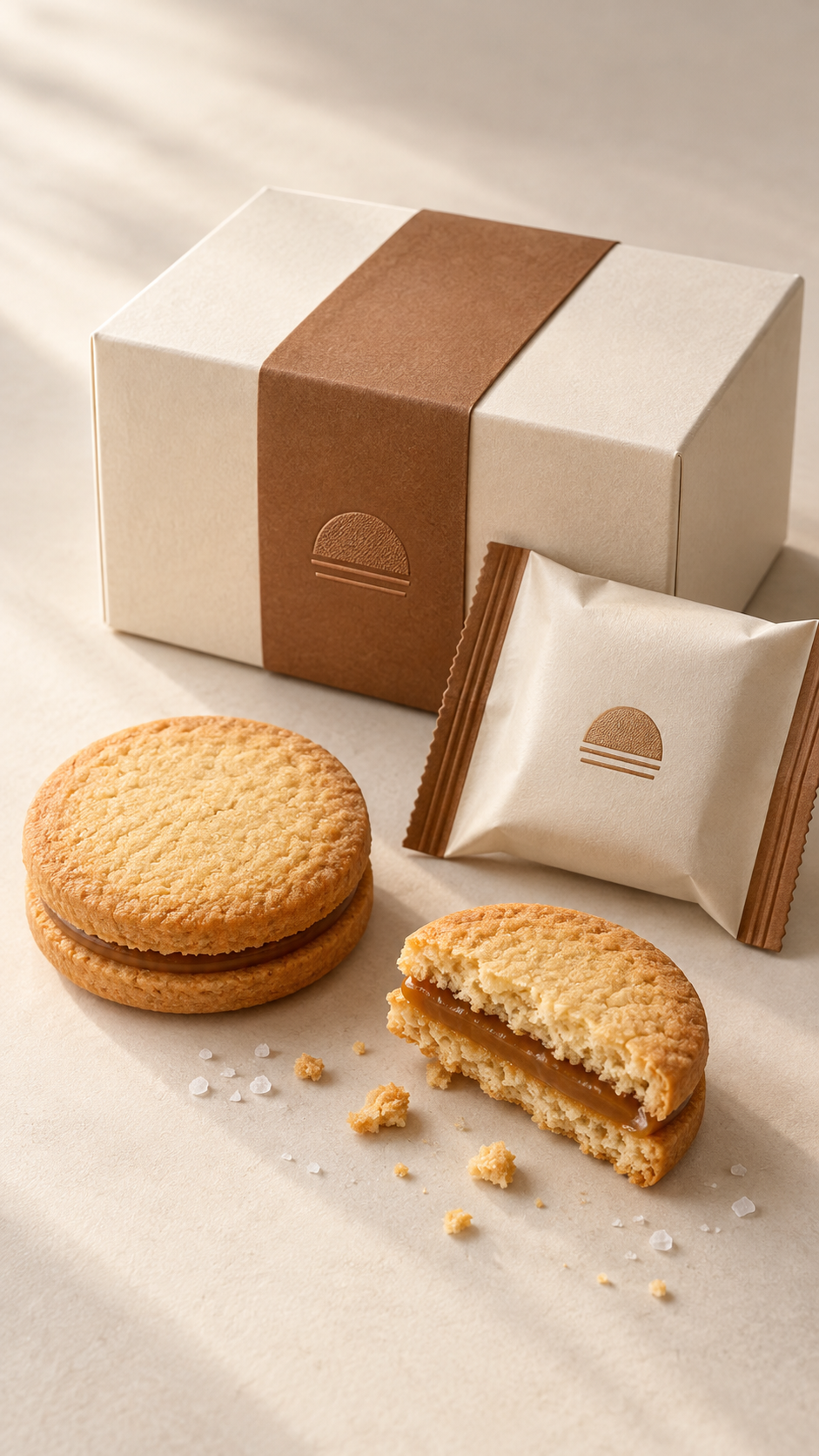
2. Plan seven images, narrations, and kinetic cards
Every image should have a specific job. A planned sequence prevents repetition and lets the story progress in the same order that a shopper would evaluate the product.
Scene 1: Open with a familiar office craving
Start with the moment when the product becomes useful: it is mid-afternoon, and someone wants a small sweet snack. An office desk, coffee, and a single wrapped cookie establish the setting before discussing specifications.
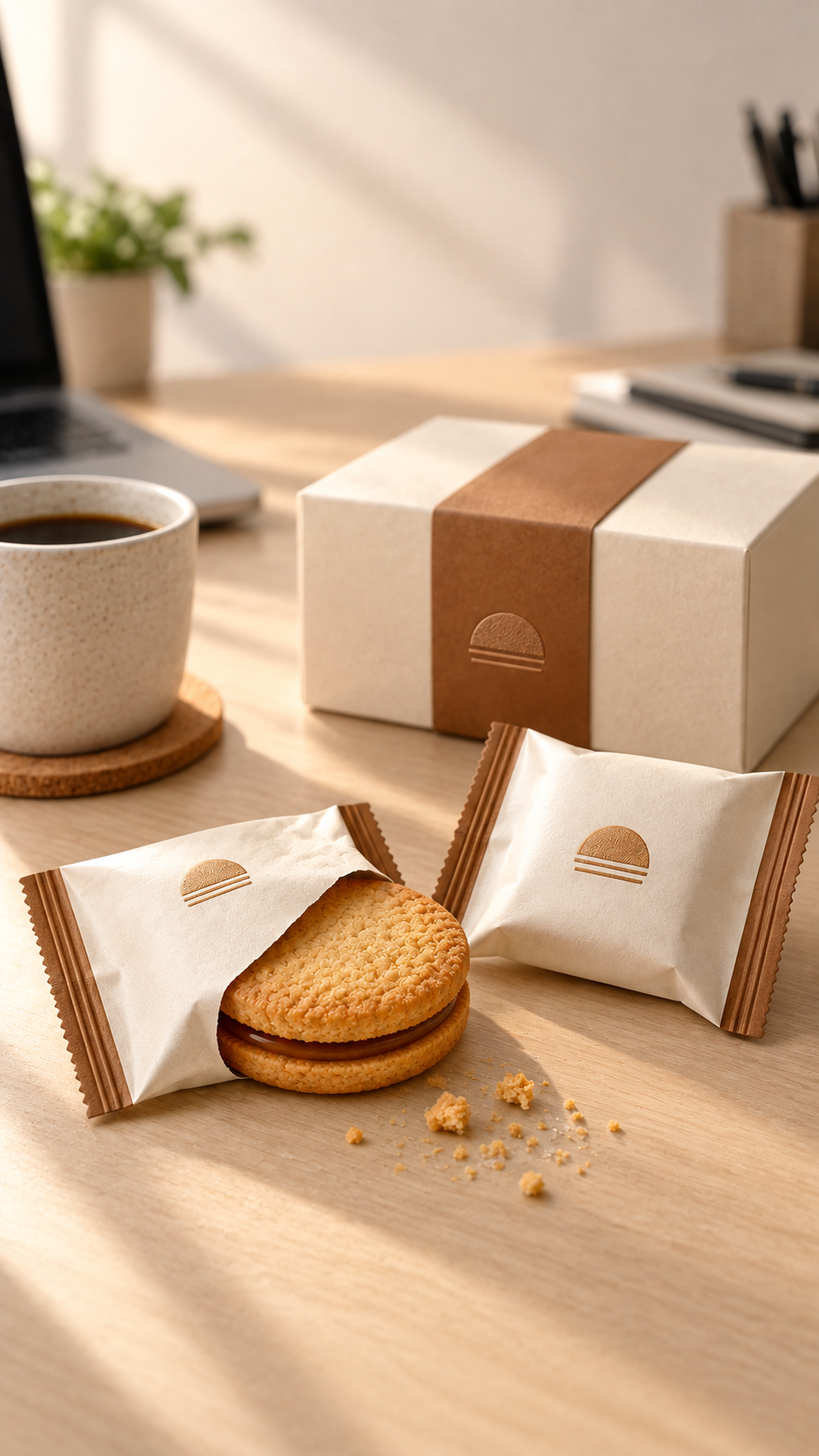
Narration: It is three in the afternoon and you want something sweet, but opening a full box feels like too much. Grab one individually wrapped cookie, and your coffee break is ready.
Kinetic card: Easy coffee break
Scene 2: Show the product up close
Move to a close-up so viewers can see the two golden cookies, caramel center, and sea salt finish. Product texture should be visible rather than left entirely to the voice-over.
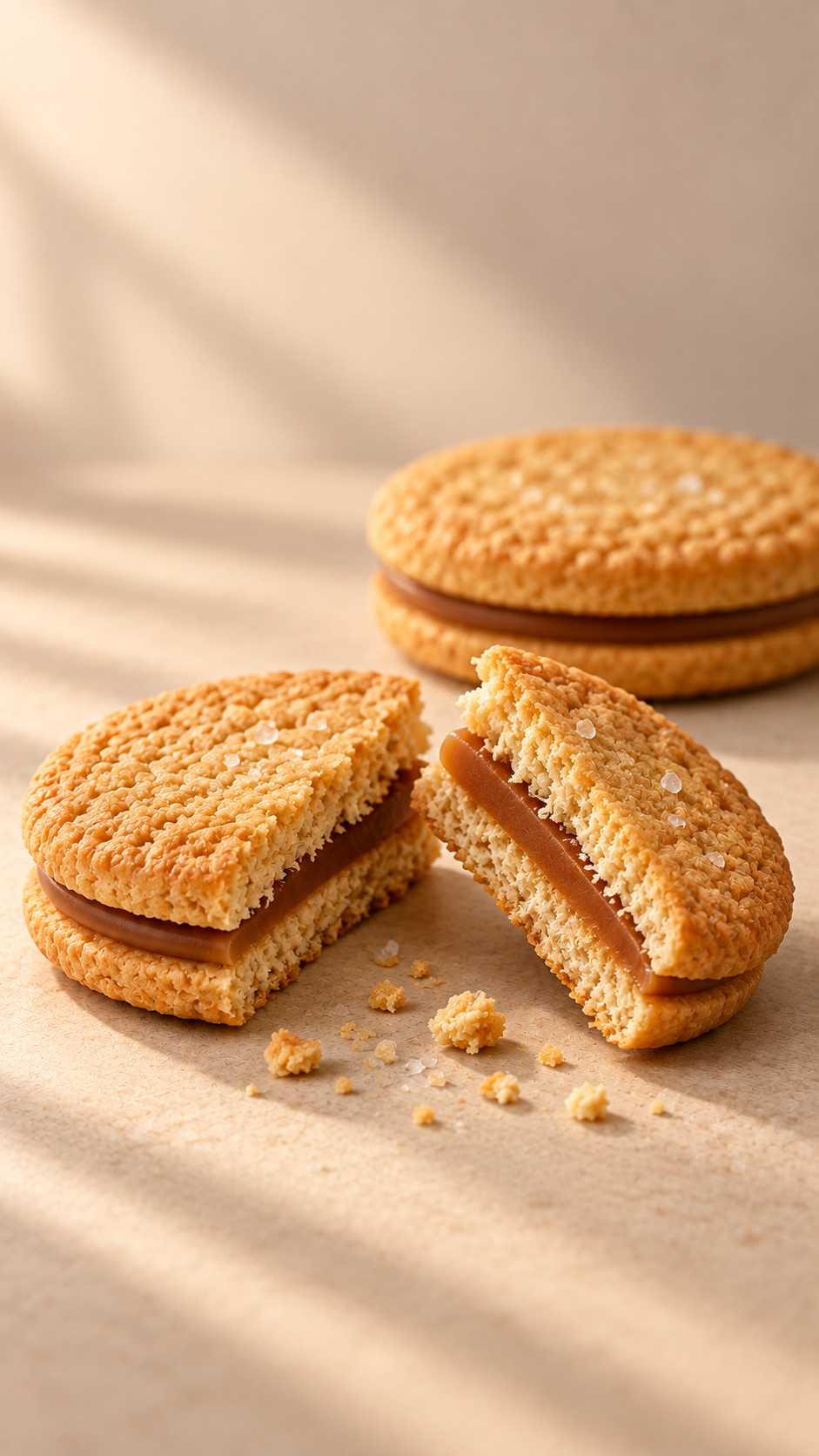
Narration: These are caramel sea salt sandwich cookies. Break one open to reveal two golden, crisp cookies, a smooth caramel center, and a light touch of sea salt on top.
Kinetic card: Caramel sea salt
Scene 3: Make the pack size obvious
Arrange all 12 wrapped cookies in one frame. Showing the quantity is clearer than asking viewers to remember a number from the narration alone.
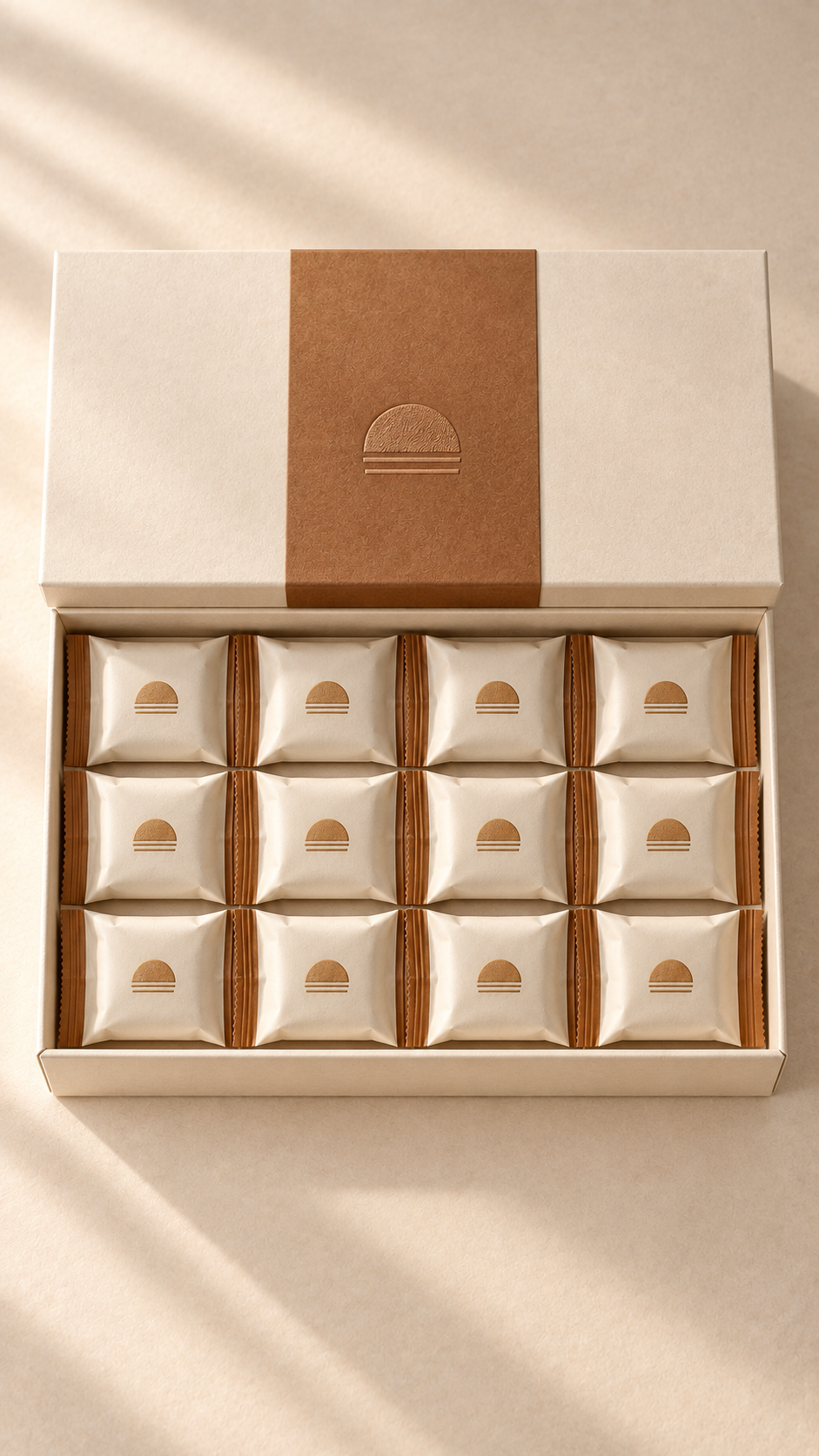
Narration: Each box contains twelve cookies, and every cookie is individually wrapped. Open one when you want it, while the rest stay neat and fresh in the box.
Kinetic card: 12 wrapped cookies
Scene 4: Demonstrate desk storage
Place a couple of packs in a desk drawer. This turns “individually wrapped” into a concrete benefit: the cookies are easy to store and ready when needed.
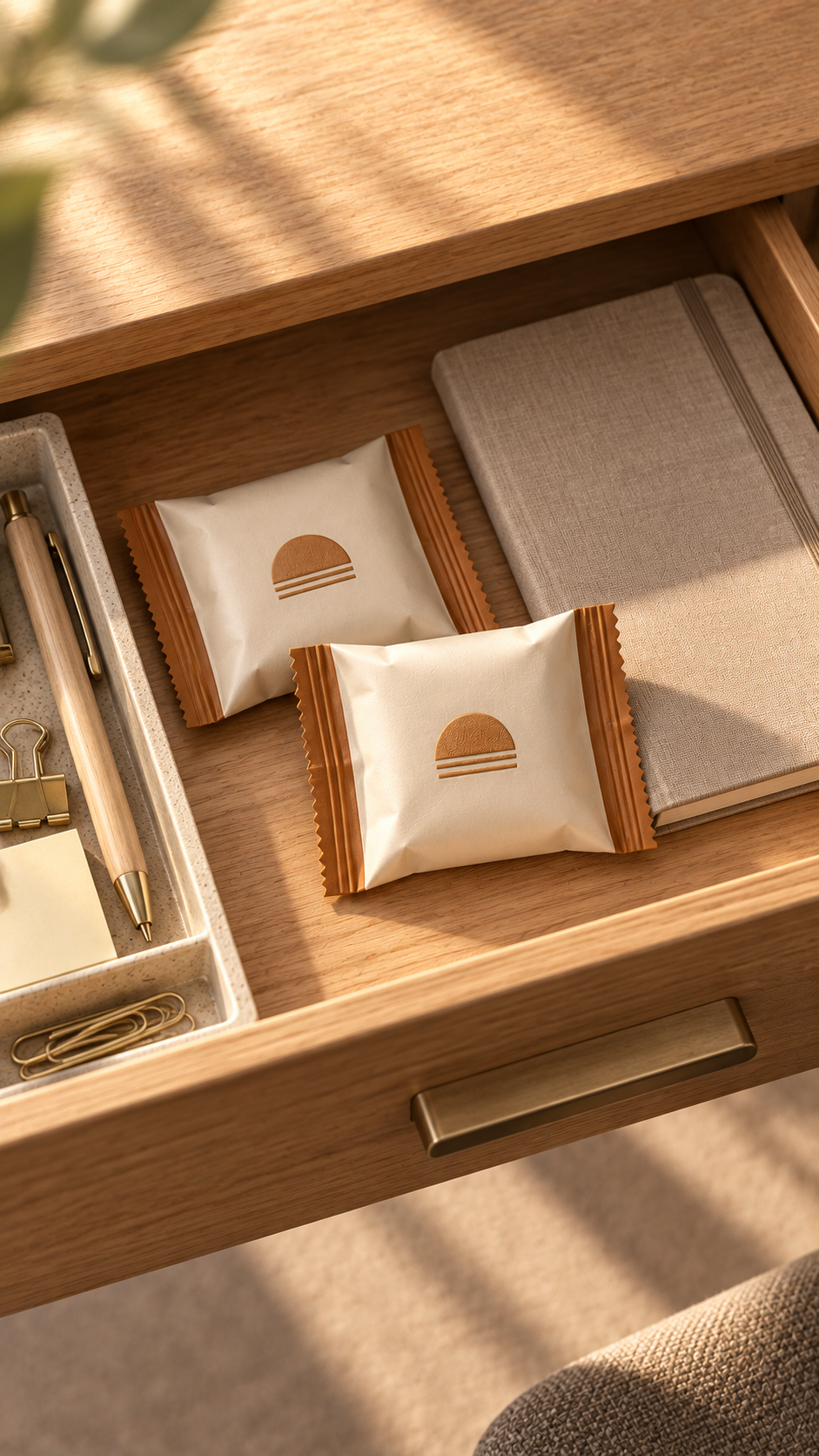
Narration: Keep a couple of packs in your desk drawer. When you are ready for a short break, just take one out. No plate, no preparation, and no full box on your desk.
Kinetic card: Desk drawer ready
Scene 5: Build the coffee-break experience
Use coffee, cookies, and warm afternoon light to create a serving suggestion. The goal is to help the viewer imagine the taste and the moment.
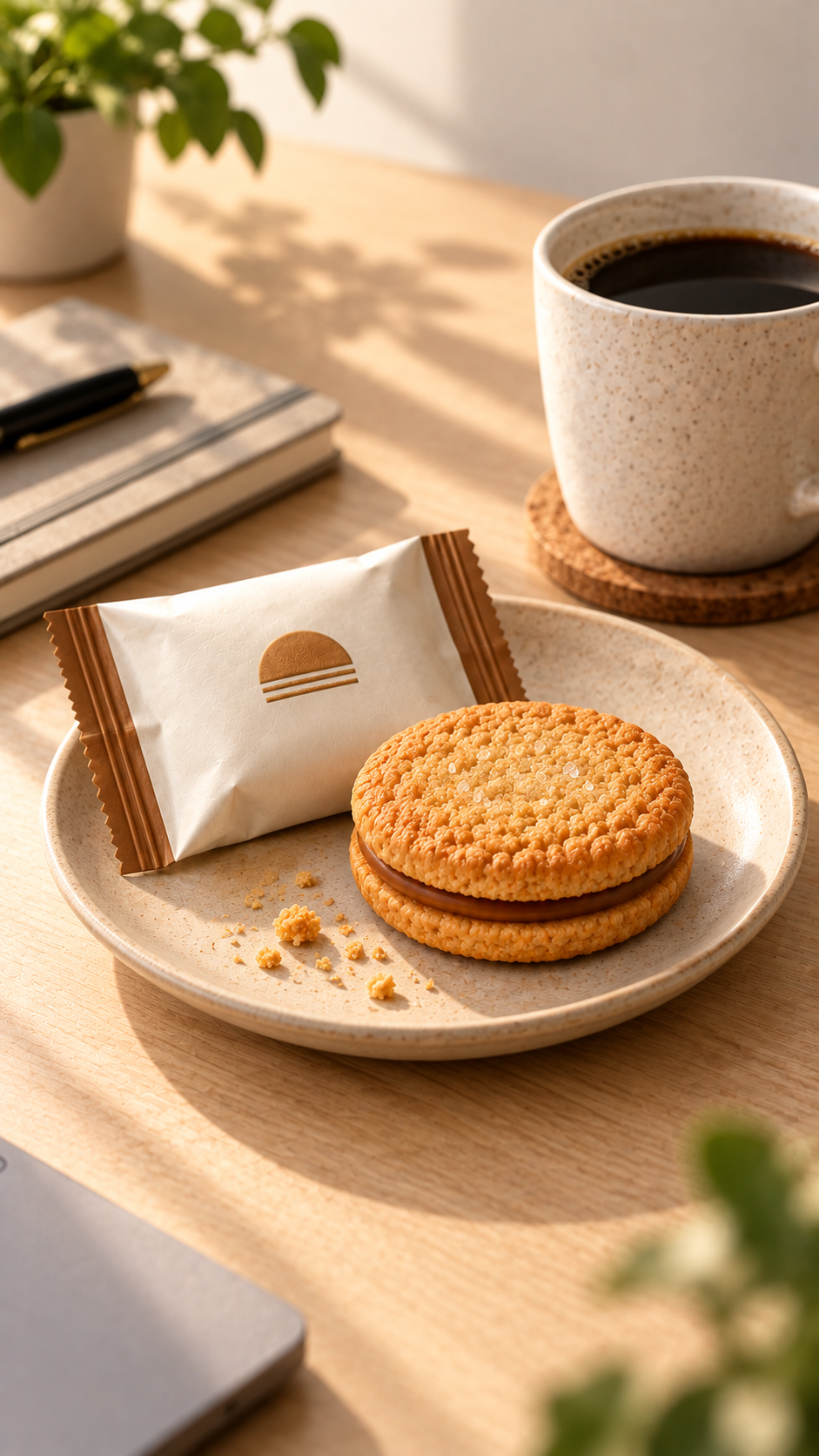
Narration: Pair one with a cup of black coffee. The crisp cookie and warm caramel sweetness turn a quick afternoon pause into a satisfying little break.
Kinetic card: Coffee break pairing
Scene 6: Show how easy the cookies are to share
A hand passing a sealed pack to a coworker makes the sharing benefit immediate and believable.
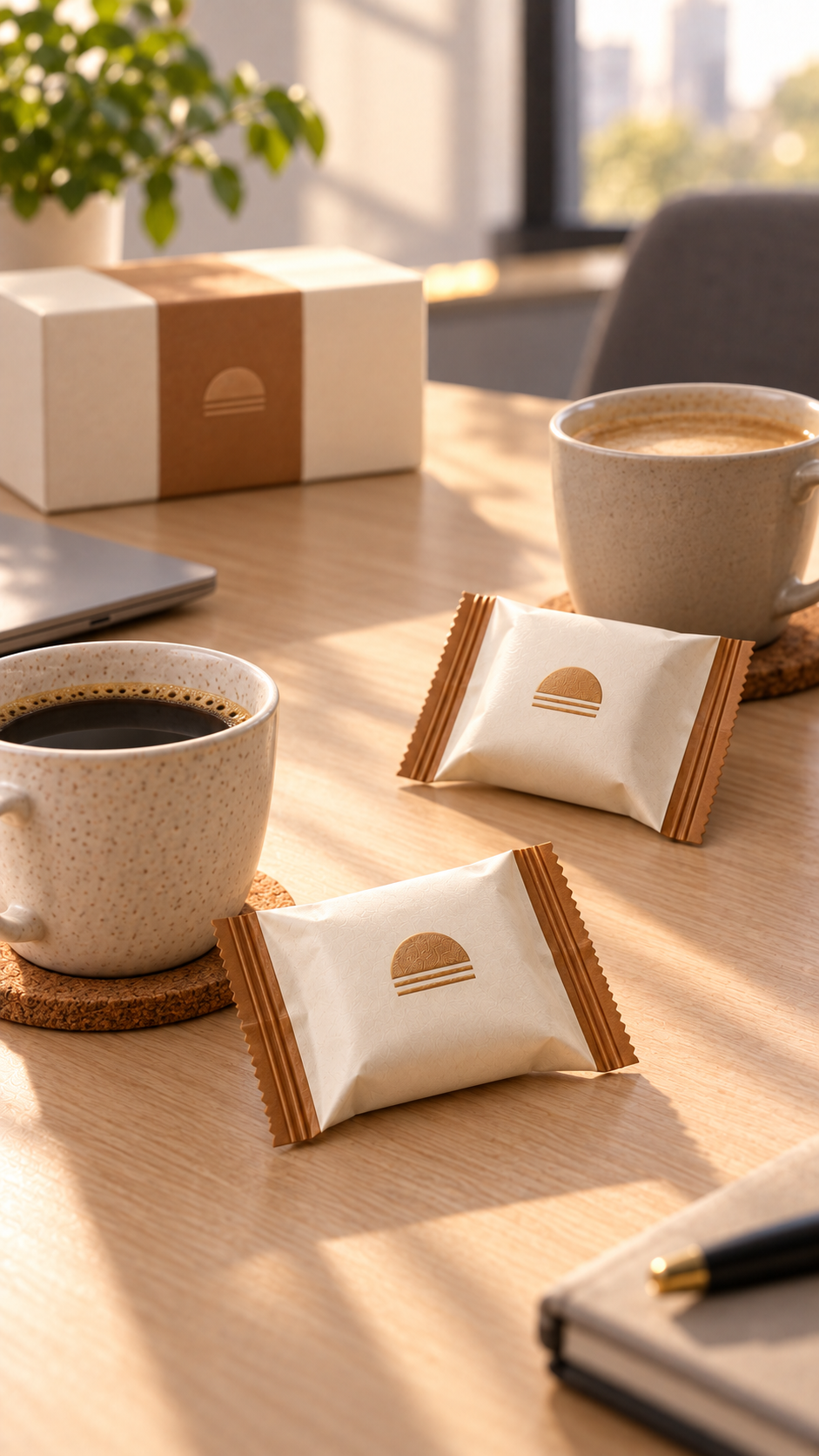
Narration: When a coworker wants to try one, simply hand them a sealed pack. With twelve individually wrapped cookies, the box is easy to enjoy and easy to share.
Kinetic card: Easy to share
Scene 7: Close with the product, price, and next step
Return to the complete product presentation. The viewer now understands the use cases, so the final scene can clearly state the pack size, sample price, and call to action.
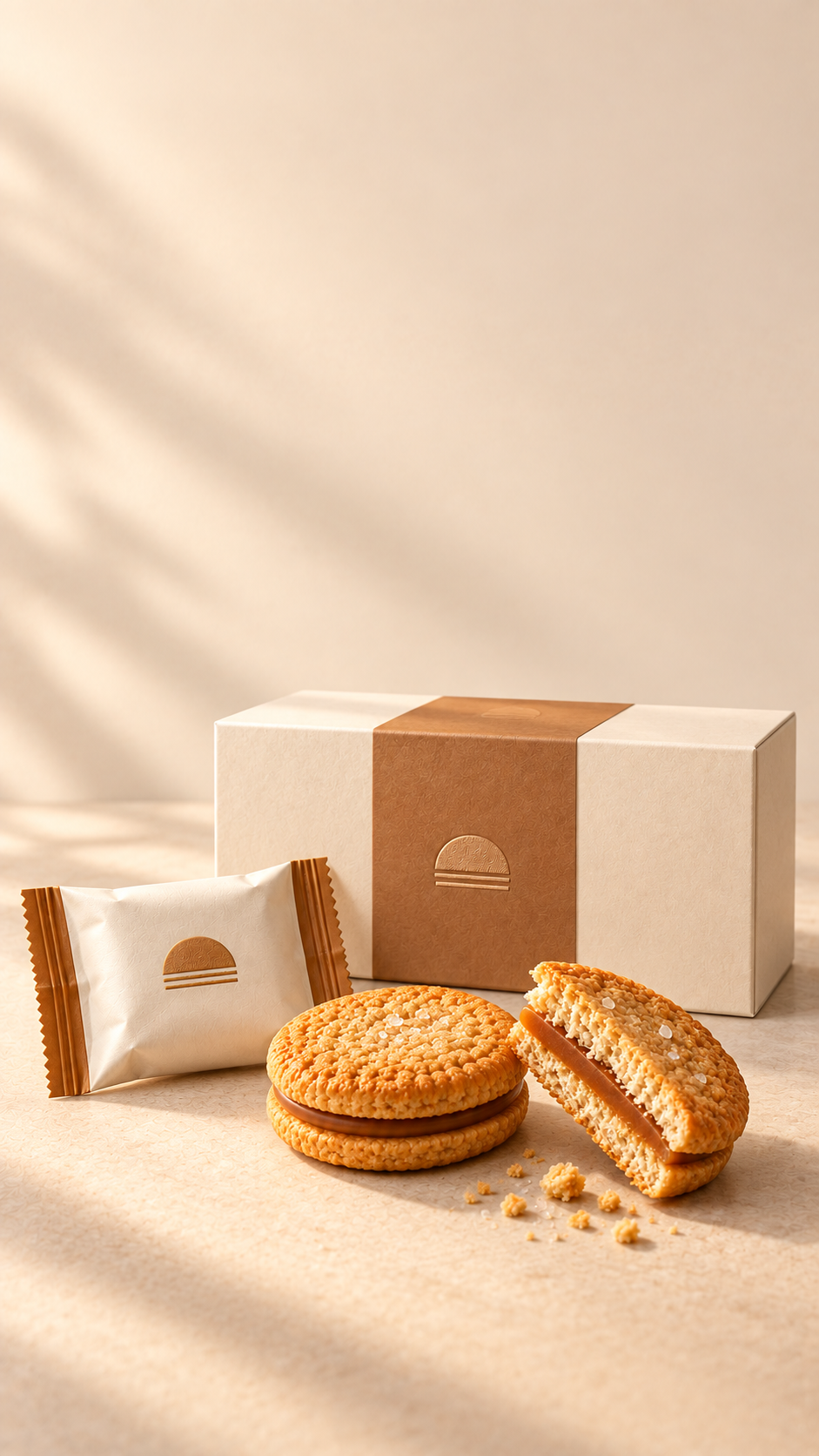
Narration: Caramel sea salt sandwich cookies, twelve per box, at a sample price of nineteen dollars and ninety-nine cents. Make your next coffee break sweeter and choose a box today.
Kinetic card: US$19.99 • Shop now
3. Add the materials to OnceClip
Upload the seven images to OnceClip in the planned order. The order creates the progression from need, to product details, to everyday use, and finally to the buying action.
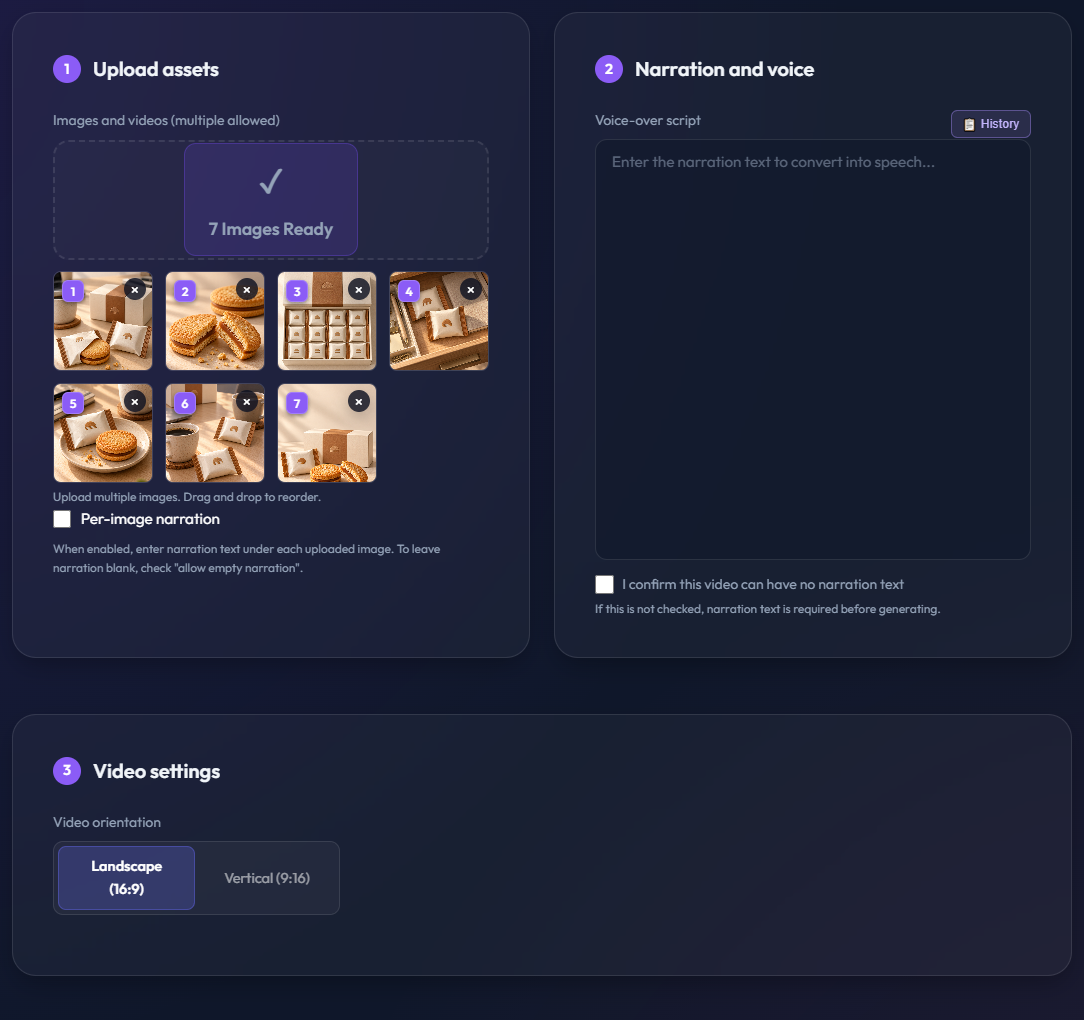
Turn on “Separate narration for each image,” then paste each narration into its matching image. OnceClip uses each voice segment to calculate how long that image should remain on screen.
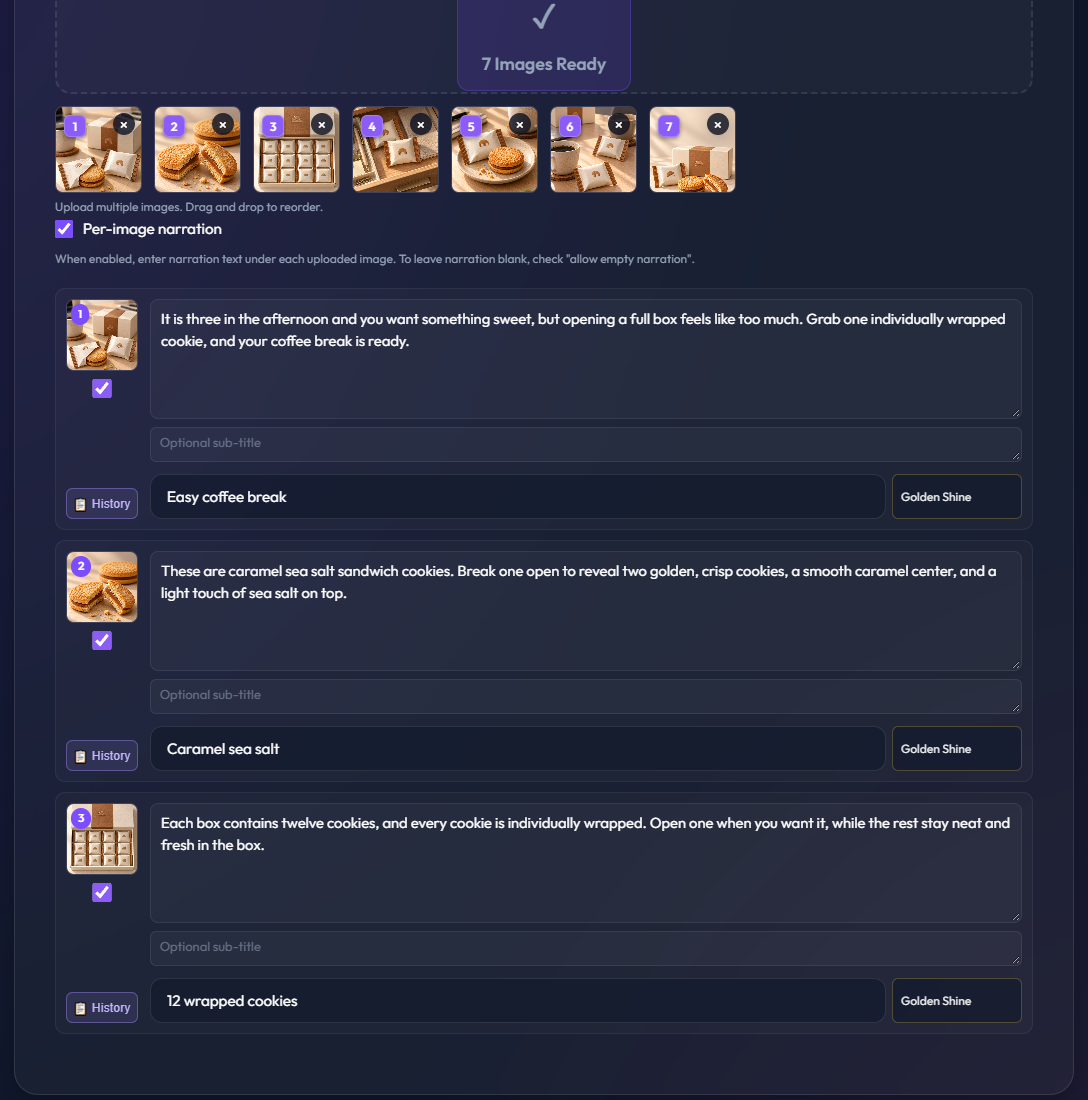
Scene-by-scene narration helps in two ways:
- Visual transitions follow complete ideas instead of cutting in the middle of a sentence.
- You can revise one scene without having to divide the entire voice-over again.
4. Choose the US English voice and video settings
This video uses US Female · Ava (en-US-AvaNeural). Her clear, contemporary delivery suits lifestyle products and e-commerce demonstrations. The speech rate is +0%, pitch is +0Hz, and narration volume is 1.0.
Use these video settings:
- Orientation: vertical 9:16
- Output size: 1080 × 1920
- Frame rate: 30 FPS
- Zoom mode: Auto (zoom and pan)
- Video quality: CRF 18
- Encoding preset: Slow
- Captions: enabled with a clear bottom caption style
- Kinetic card style: Golden Shine
- Background music: none, keeping the sales narration easy to hear
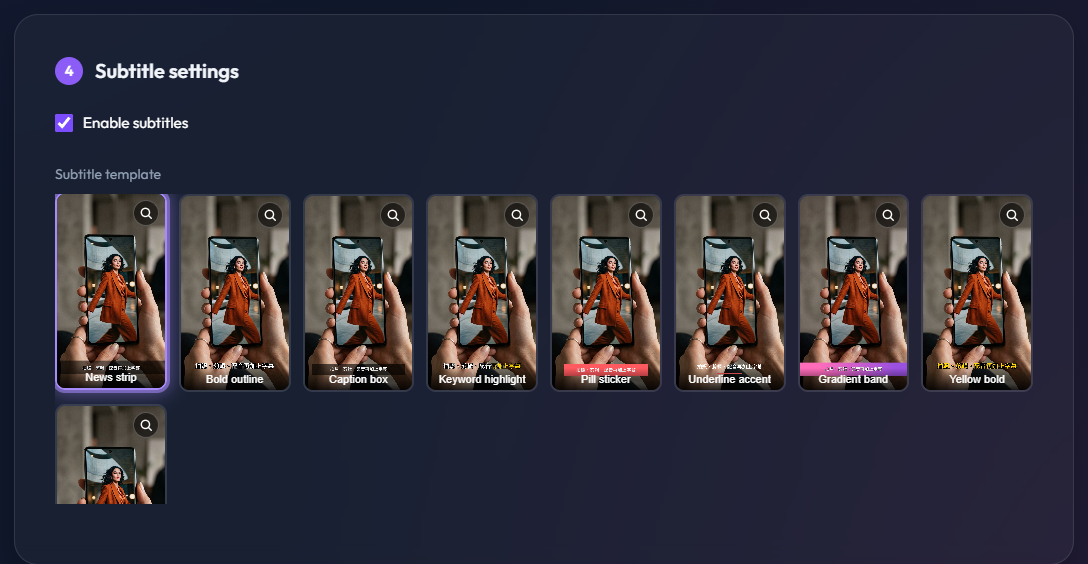
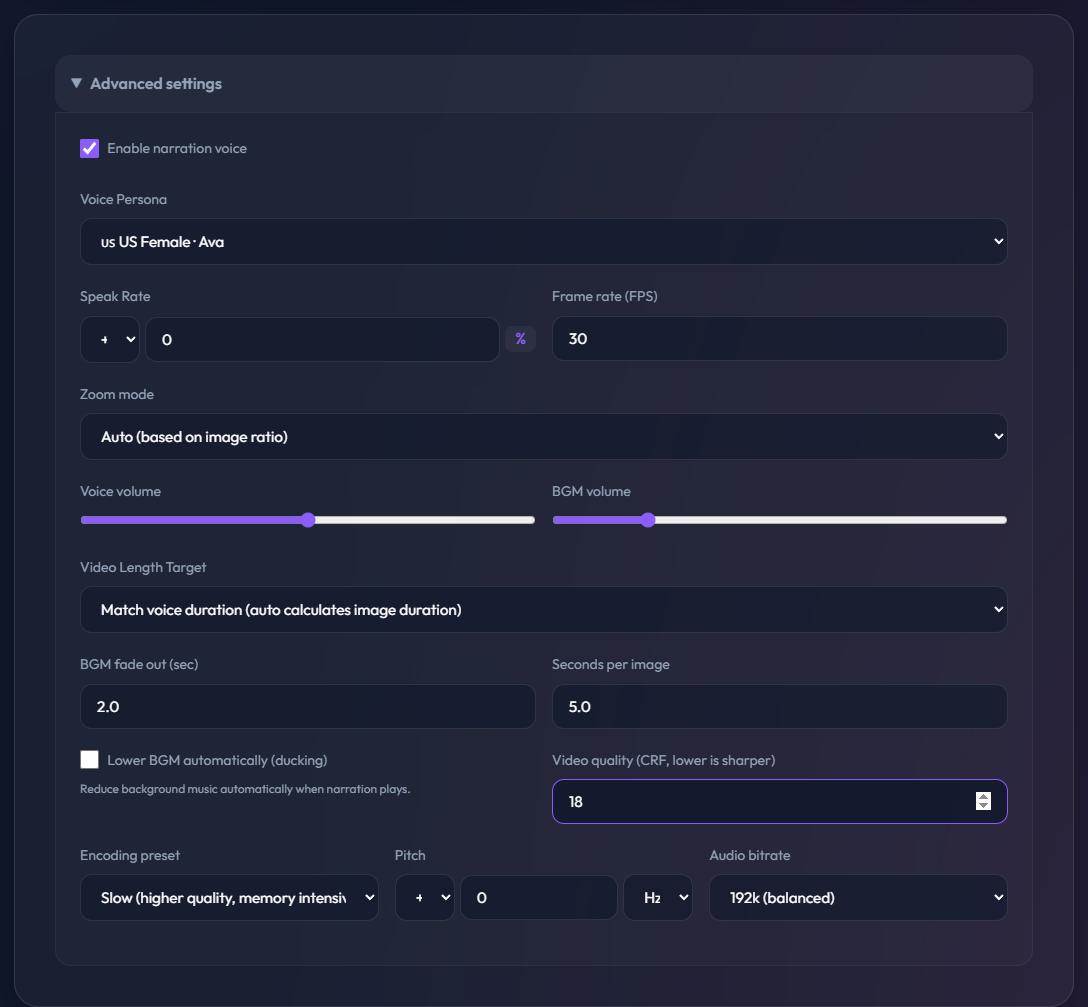
Auto zoom mode selects zoom-in, zoom-out, or a directional pan based on the image. If a finished video looks static, confirm that Auto is selected and that the zoom range and scene duration provide enough visible movement.
5. Generate and review the 71-second video
Select “Generate video.” OnceClip processes the images, Ava narration, captions, kinetic cards, and zoom or pan movement. This example finishes at 71.14 seconds.
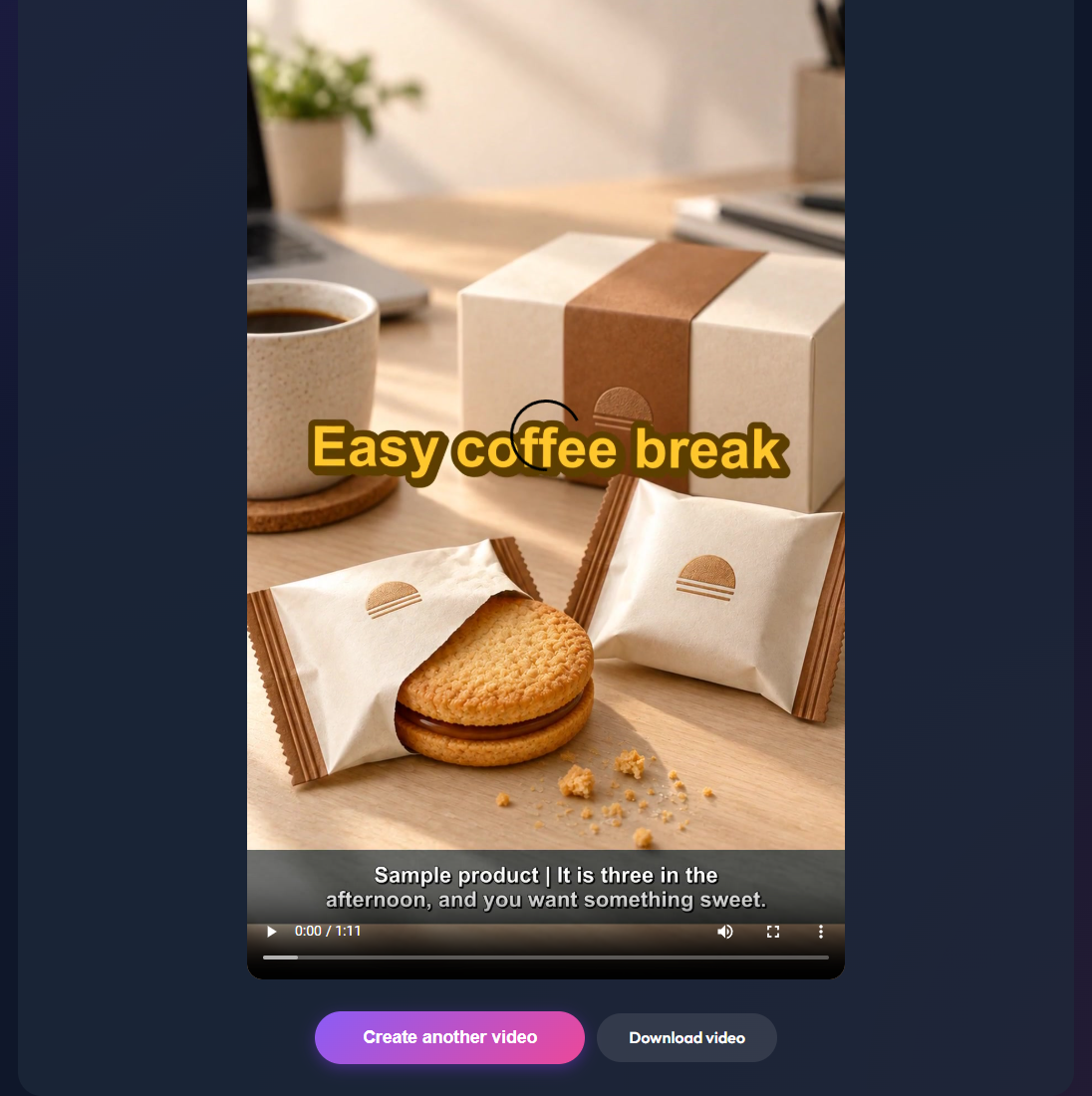
Watch the entire result at least once before downloading it. Check that:
- The images follow the planned order and the product remains visually consistent.
- Every narration segment matches the image currently on screen.
- Captions are large enough, break at natural word boundaries, and stay clear of platform controls.
- Kinetic cards are short and do not cover the main product.
- Zoom and pan movement is visible without cropping the packaging, quantity, or price.
- The final scene clearly shows 12 per box, US$19.99, and “Shop now.”
Once these checks pass, download the MP4 for a product page, short-video platform, or social media post.
6. Details that matter in an English-market version
Localization includes more than translating the article:
- Natural copy: use phrases that sound written for an English-speaking shopper.
- Currency: keep US$19.99 consistent in the narration, kinetic card, article, and final review.
- Voice: use a US English speaker instead of an English translation read with another regional voice.
- On-screen language: the OnceClip screenshots, captions, kinetic cards, result screen, and buttons should all be English.
- Search information: localize the title, description, URL slug, image alt text, and captions.
- Calls to action: link back to the English workspace and use English download labels.
- Disclosure: label fictional products and prices as examples so they are not mistaken for a live offer.
With the product story planned first, the OnceClip workflow is straightforward: upload the images, enter narration per scene, choose the voice, set the format and captions, generate the video, and review the result.
Turn seven product images into a video you can publish